Save sync
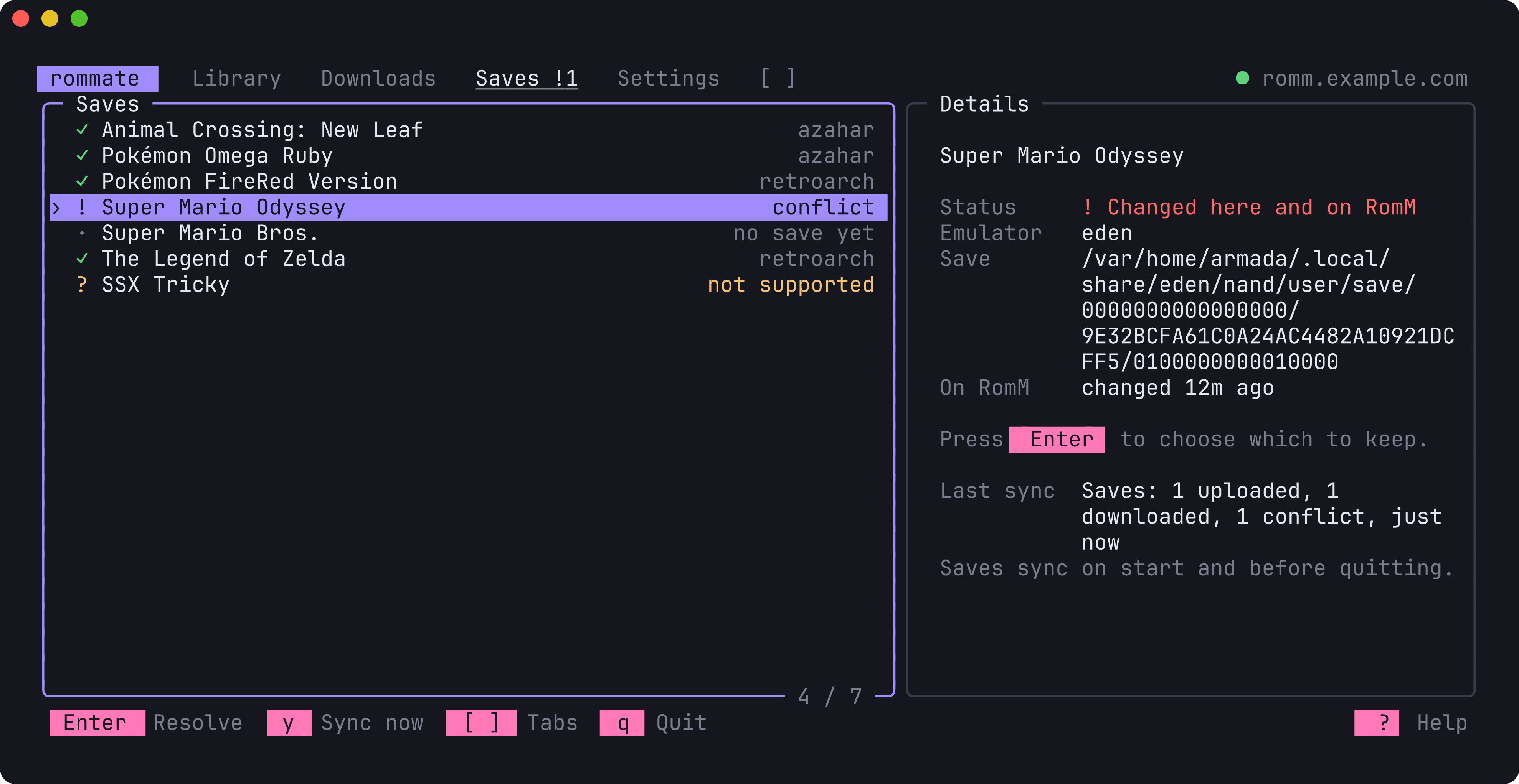
rommate keeps your emulator saves in sync with RomM, so you can continue a game on another device. It syncs in-game saves (not save states) of the games you downloaded with rommate.
How it works
- rommate registers your device with RomM once.
- It looks for the save of every downloaded game, in the place your emulator keeps it.
- It sends RomM a short description of each save (a hash and a timestamp). RomM decides per save: upload, download, nothing to do, or conflict.
- rommate uploads and downloads accordingly. Before a downloaded save replaces yours, the old one is backed up.
Saves are stored in RomM’s shared autosave slot, the same one the RomM web player and other RomM apps use.
When it syncs: in the TUI when it starts and before it quits (turn this off with
auto_sync_saves = false), with Y in the Saves tab, or with rommate saves sync.
Supported emulators
rommate finds the saves on its own for native, Flatpak and AppImage installs, and for EmuDeck and RetroDECK setups. It reads each emulator’s own save location setting first.
| Emulator | Platforms | Save | Matched by |
|---|---|---|---|
| RetroArch | NES, SNES, Game Boy (Color/Advance), N64, PlayStation, Mega Drive, Master System, Game Gear, PC Engine and more | <game>.srm, also in the core and content folders RetroArch sorts saves into | file name of the game |
| melonDS | Nintendo DS | <game>.sav next to the game, or in SaveFilePath | file name of the game |
| Azahar | Nintendo 3DS | the game’s save folder | title ID, read from the game file (.3ds, .cci, .cxi, .cia) |
| PPSSPP | PSP | all SAVEDATA folders of the game | disc ID, read from the game file (.iso, .cso) |
| Eden, Citron, Sudachi, Suyu, yuzu | Switch | the game’s save folder of your profile | title ID from a [0100…] tag in the file name, or read from the game file with your emulator’s prod.keys |
Platforms without a supported emulator show ? in the Saves tab. PlayStation 2 is not supported yet: PCSX2 and ARMSX2 keep all games in one shared memory card file.
Conflicts
A conflict means the save changed on this device and on RomM since the last sync. rommate never picks a winner on its own: both copies stay untouched until you choose. In the Saves tab, press A on the game and then X to keep this device’s save or Y to keep RomM’s. From the command line:
rommate saves resolve <rom-id> --keep local    # upload this device's save
rommate saves resolve <rom-id> --keep server   # download RomM's save
The other version is not lost: a replaced local save goes to the backups, and RomM keeps older versions of each save.
Backups
Every time a download replaces a local save, the previous version is copied to
~/.local/state/rommate/save-backups/<rom-id>/. rommate keeps the five newest backups per save. To restore one, copy
it back to the emulator’s save location (folder saves are stored as zip files).
Command line
rommate saves                                   # save state of every downloaded game
rommate saves sync                              # sync now (--json for scripts)
rommate saves resolve <rom-id> --keep local|server
RomM version
Save sync needs a RomM server with the save sync API (/api/sync). RomM 5.4 or newer is recommended: it keeps track of what each device last
synced, which makes conflict detection more reliable. With older servers rommate does that bookkeeping itself.