The TUI
Run rommate without arguments to open the TUI. It is built to be used with a controller from the couch, and works
just as well with a keyboard.
Tabs
- Library
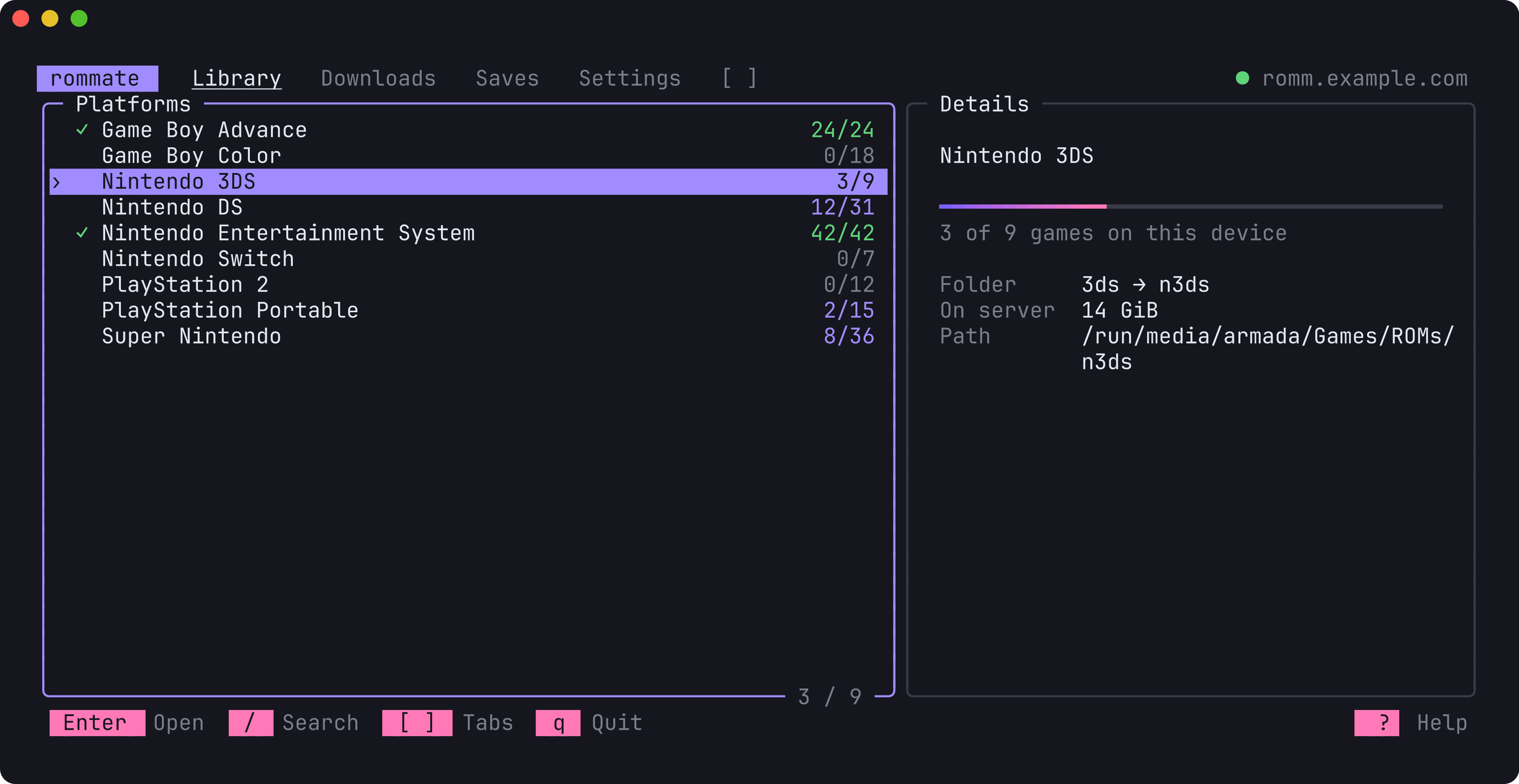
- Every platform on your server with a
downloaded/totalcount. Open a platform to see its games: ✓ means the game is on this device, ↓ that it is downloading and • that it is queued. The details pane shows the size, the file name and where the game will be stored. - Downloads
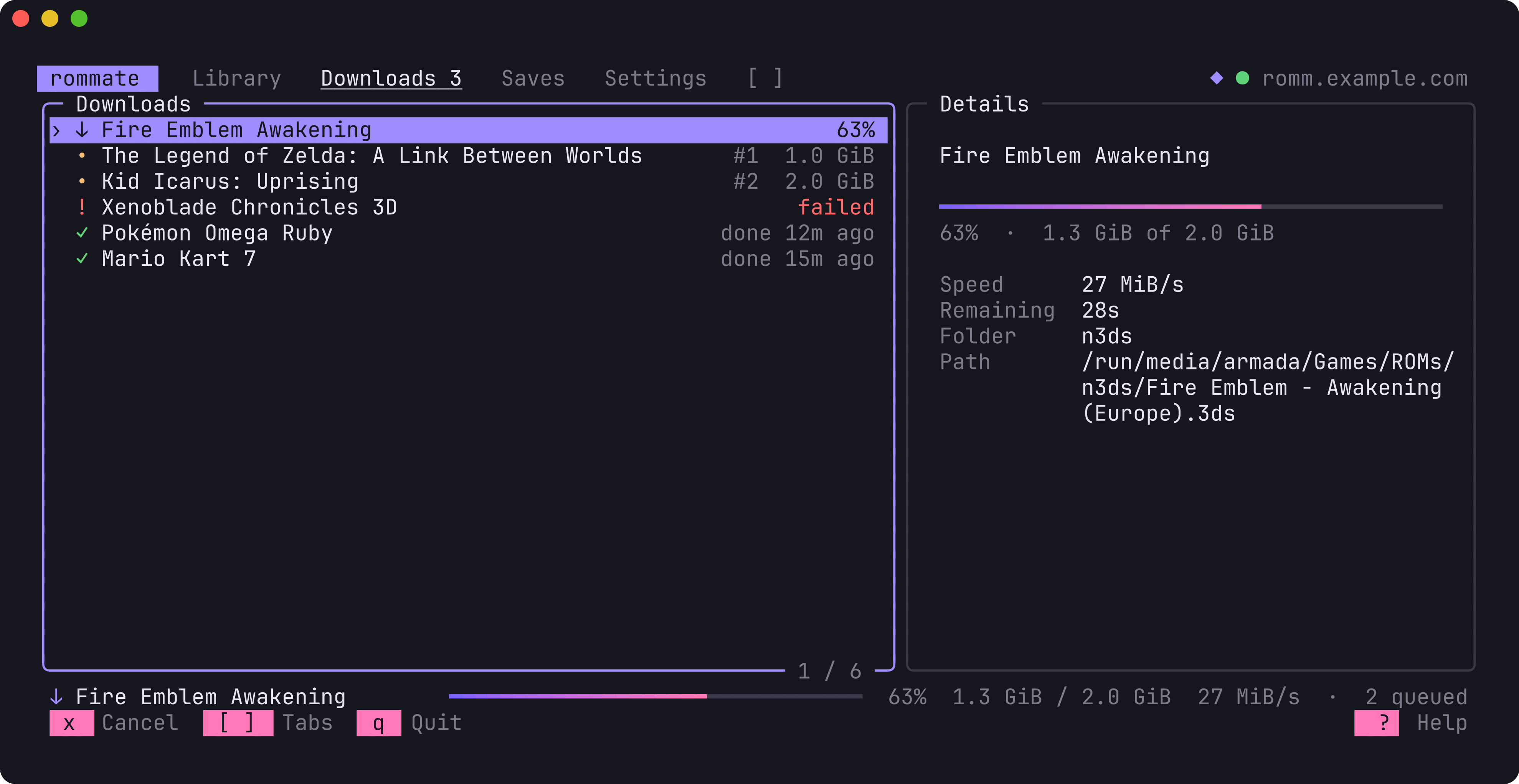
- The queue: the running download with speed and time left, queued games in order, failed downloads with their error, and what finished recently. Cancelled downloads keep their partial file and resume next time.
- Saves
- Every downloaded game with the state of its save: ✓ when it has one, ! when it changed on this device and on RomM since the last sync (a conflict), · when there is no save yet, and ? when no supported emulator is installed for it. Press Y to sync now, or A on a conflict to choose which version to keep. See Save sync.
- Settings
- Change rommate’s options with the controller: footer hints, asking before quitting, automatic save sync, cover art
and direct controller input. Changes are saved to
config.tomlright away, keeping your comments. Below the options you see the server, ROM and media folders, the config file and the version.
While something downloads, a bar at the bottom shows its progress on every tab, like Steam does.
Search
Press / to search (keyboard only).
- On the platform list,
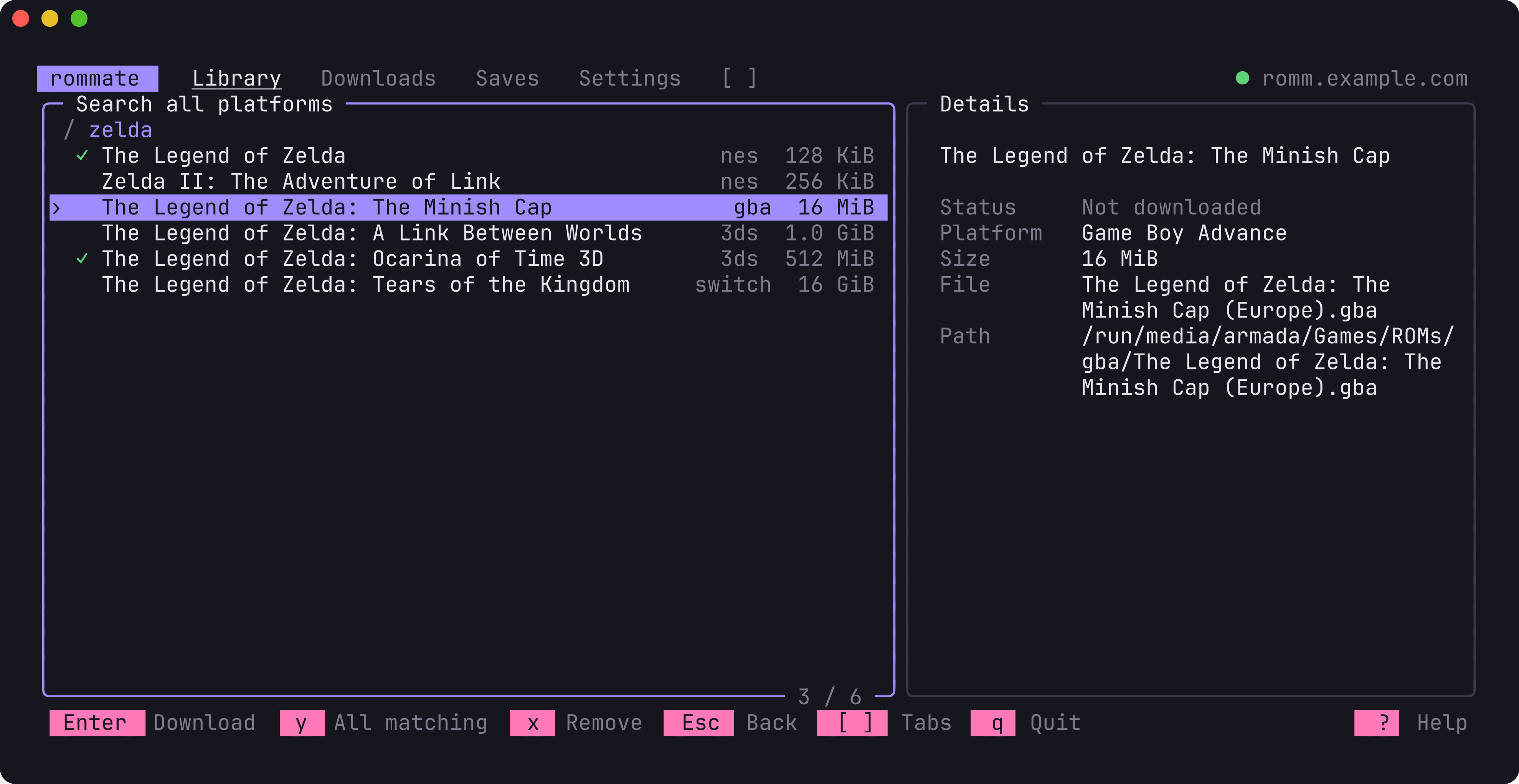
/searches games on every platform through RomM. Results show their platform, and you download them as usual. - Inside a platform,
/filters its games as you type. Every word must match the game name or file name, in any order:zelda linkfinds A Link Between Worlds.
Enter keeps the results and moves to the list; Esc clears the search. With a search active, Y downloads all
missing games that match.
Shortcuts
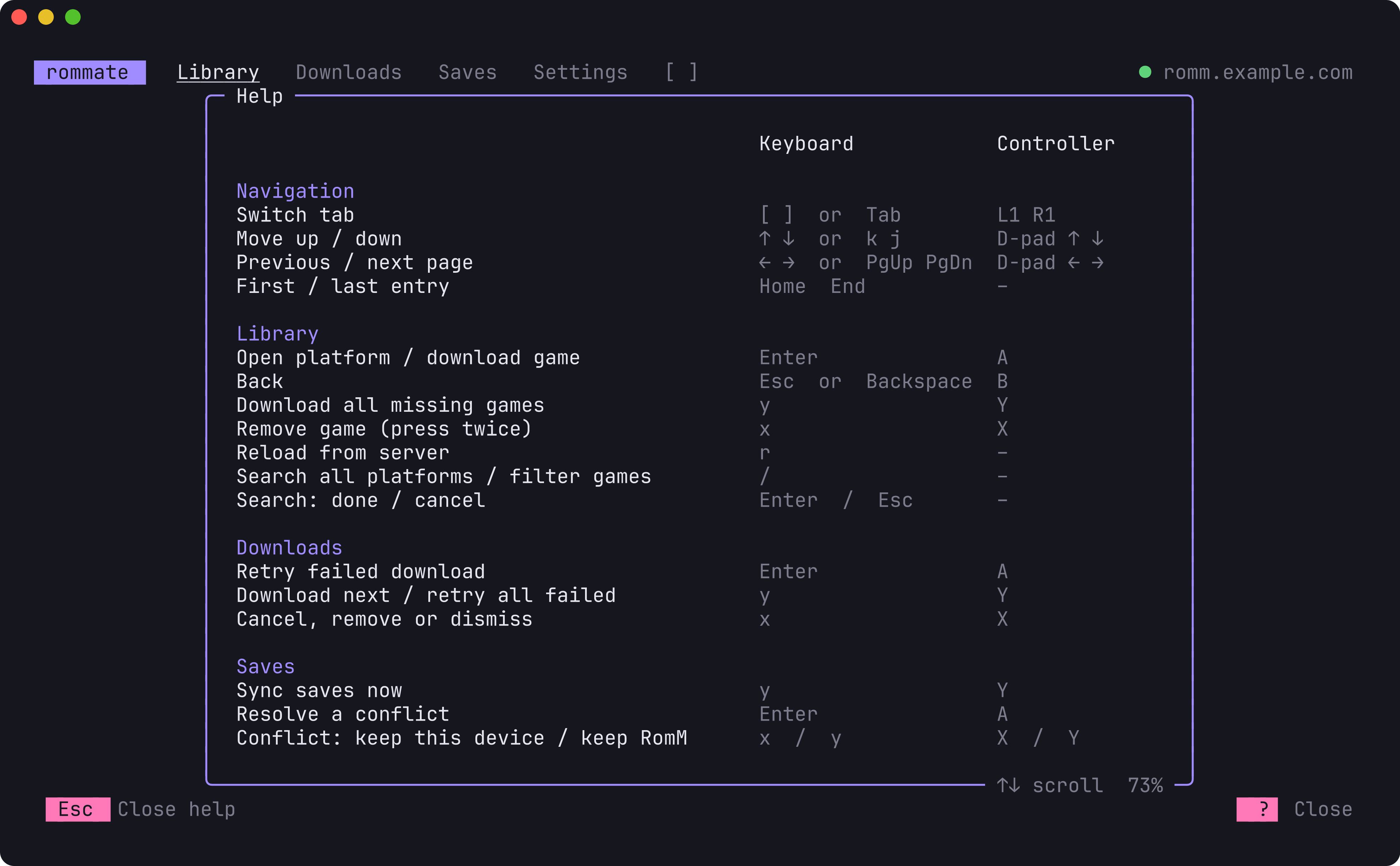
Press ? or Select to see these in the app. The footer always shows the actions that fit the selected item.
| Action | Keyboard | Controller |
|---|---|---|
| Switch tab | [ ] or Tab | L1 R1 |
| Move up / down | ↑ ↓ or k j | D-pad ↑ ↓ |
| Previous / next page | ← → or PgUp PgDn | D-pad ← → |
| First / last entry | Home End | |
| Open platform / download game | Enter | A |
| Back | Esc or Backspace | B |
| Download all missing games of a platform | y | Y |
| Remove a game (press twice) | x | X |
| Reload from the server | r | |
| Search every platform / filter a platform’s games | / | |
| Search: keep results / clear | Enter / Esc | |
| Downloads: retry a failed download | Enter | A |
| Downloads: download next / retry all failed | y | Y |
| Downloads: cancel, remove or dismiss | x | X |
| Saves: sync now | y | Y |
| Saves: resolve a conflict | Enter | A |
| Conflict: keep this device / keep RomM | x / y | X / Y |
| Settings: change the selected option | Enter or ← → | A or D-pad ← → |
| Show or hide help | ?, F1 or h | Select |
Quit (asks first, see confirm_quit) | q or Ctrl+C | Start |
Controller setup
On Linux, rommate reads controllers directly, so no extra setup is needed: started from Steam with the default
gamepad layout (for example with the Decky plugin’s Open rommate button), the D-pad, A/B/X/Y, L1/R1, Select and
Start just work. Holding a direction on the D-pad repeats it. Your user needs read access to /dev/input/event*, which
it has on SteamOS-style systems through the input group. Run rommate gamepad to see which controllers rommate finds
and how it reads each button.
If you prefer a Steam Input keyboard layout instead (or on macOS and Windows), map the buttons to these keys. rommate
notices when a key arrives right after the same controller press and ignores the duplicate. To switch direct
controller input off, set gamepad = "off".
| Button | Key |
|---|---|
| D-pad | arrow keys |
| A | Enter |
| B | Esc |
| X | x |
| Y | y |
| L1 / R1 | [ / ] |
| Select / View | F1 |
| Start / Menu | q |
F1 rather than ?, because ? needs Shift and Steam Input binds single keys.Keyboard or controller hints
The footer shows either keyboard keys or controller buttons. With hints = "auto" (the default), rommate shows
controller buttons when Steam started it or as soon as you press a controller button, and keyboard keys otherwise. Set hints = "keyboard" or
hints = "controller" in the configuration to force one.